Tools and Items Needed
Before beginning installation, ensure you have the following:
- Fuse Tap Connectors – for tapping into vehicle wiring
- Fuses - 3A fuse for the battery and ignition input lines.
- Pliers – for gripping and bending wires
- Multi-meter – to verify voltage and ground connections
- Wire Strippers/Cutters – for preparing wire ends
- Screwdrivers – for opening panels or securing mounts
- Zip Ties or Fasteners – to secure wiring and device
- Protective Gloves – for safety during installation
Harness Wiring
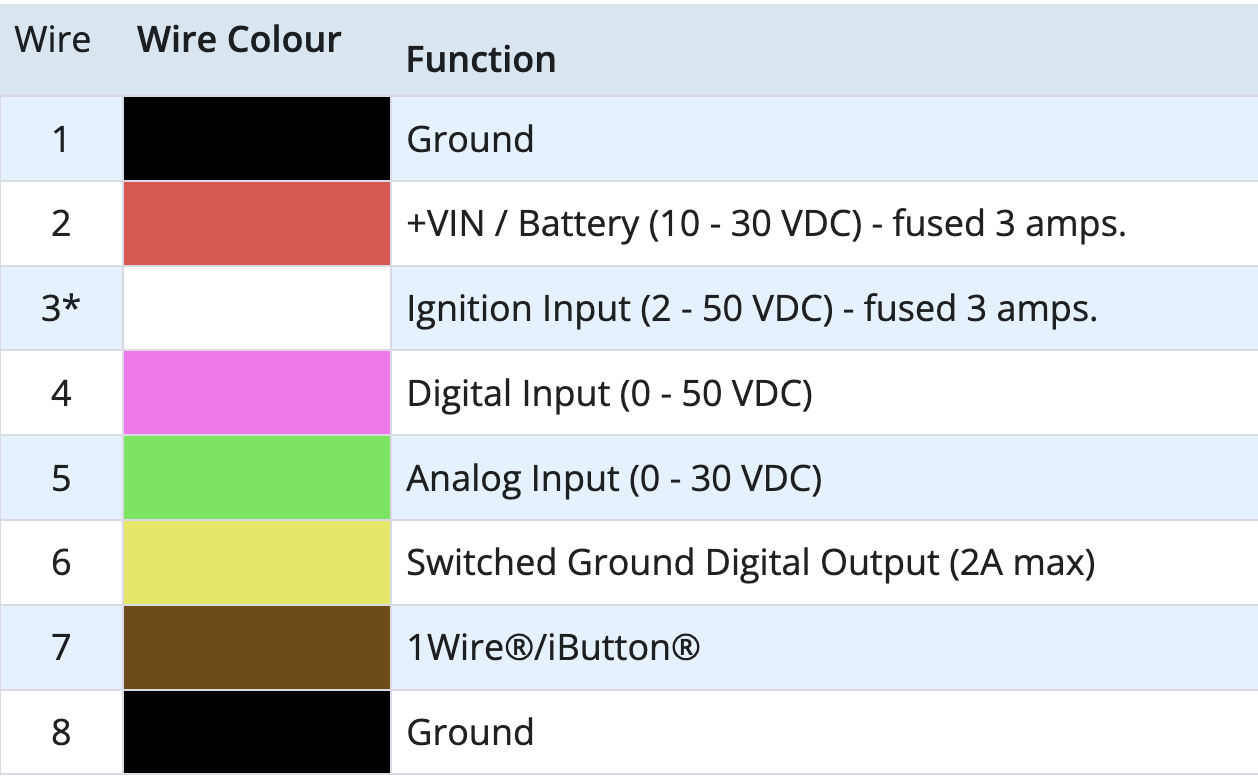
- The Arrow Global BLE comes with a 8 wire, 600 mm long harness
- All wires are pre-stripped by 15mm
- Wire gauge is 22 AWG / 0.64mm²
Basic 3-Wire Installation
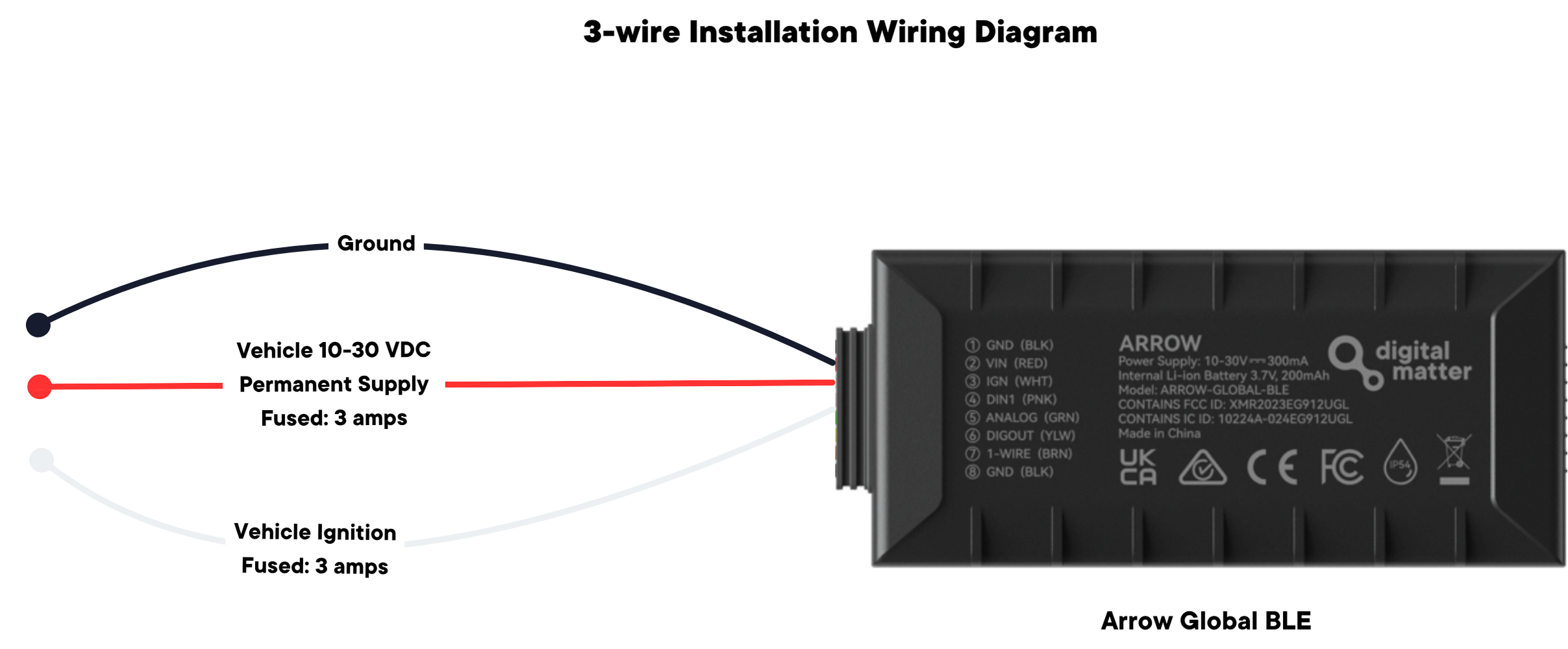
- Use a multi-meter to locate a fuse that supplies power even when the vehicle is turned off (such as the hazard lights or interior/door lights)
- Connect Red (Wire 2) on the Arrow Global BLE harness to this or the vehicle battery (10 - 30 VDC).
- Use an inline fuse rated at 3 amps.
- Connect Black (Wire 1 - or any black wire on the harness) to chassis ground.
- Use a multi-meter to locate a fuse that will only supply power when the vehicle is on - such as indicator lights.
- Connect White (Wire 3) - to this point.
- The White ignition input will register as 'on' when >2 VDC is applied to this line.
- Use an inline fuse rated at 3 amps.
Note: It is best to avoid ‘tapping into’ a safety critical system such as the ABS.
Fuse taps such as the below may be used for a clean and quick install.
Mounting Guidelines
Mount the device securely using zip ties or brackets.
Place the device with as clear a view of the sky as possible, in order to maximise GPS signal.
Avoid mounting near metal surfaces or electronic interference sources (e.g., radios, ECUs).
Route wires neatly, away from sharp edges, moving parts and secure them to avoid vibration damage.
Test
Use our mobile app or login to check its working.
If you do not have access, use our installer page to check: https://www.oemserver.com/installer
FOR MORE INFORMATION ON HOW TO DO A SPECIAL IMMOBILISER INSTALL - CLICK HERE
Was this article helpful?
That’s Great!
Thank you for your feedback
Sorry! We couldn't be helpful
Thank you for your feedback
Feedback sent
We appreciate your effort and will try to fix the article